
Identificarea și remedierea erorii „IBAN lipsă / necompletat în SAF-T (D406)”
Un studiu despre folosirea Pionier AI pentru diagnosticarea unei erori SAF-T și identificarea pașilor de remediere în Nexus ERP.
- SAF-T D406
- eroare IBAN identificată
- 7 pași
- pentru remedierea configurației
- surse Nexus
- documentație verificabilă
În procesul de generare și validare a declarației SAF-T (D406), utilizatorul a întâmpinat o eroare care împiedica validarea corectă a declarației. Mesajul afișat indica lipsa sau configurarea incorectă a unui cod IBAN asociat societății.
În mod tradițional, identificarea cauzei unei astfel de erori presupune consultarea documentației tehnice și verificarea mai multor zone de configurare din aplicație.
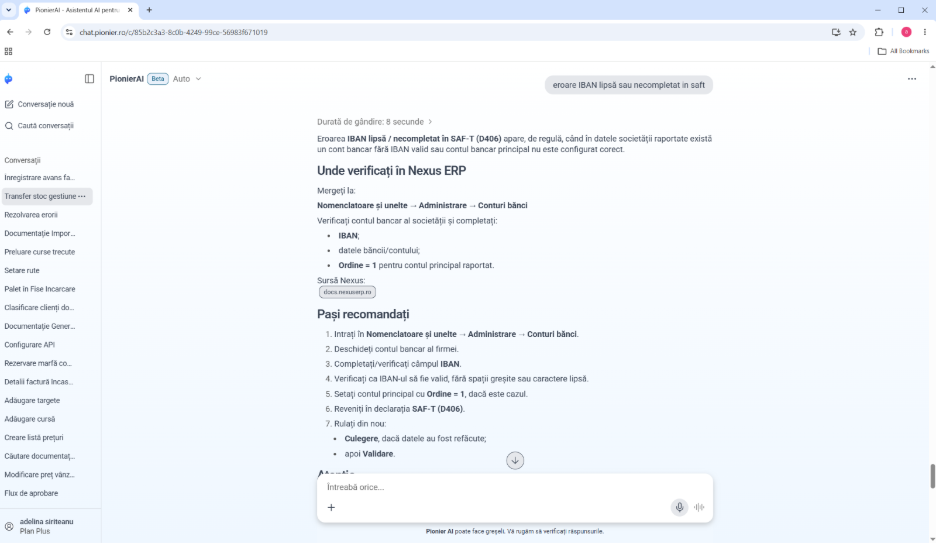
Solicitarea adresată către Pionier AI: eroare IBAN lipsă sau necompletat în SAF-T
Răspunsul generat de Pionier AI
Pionier AI a identificat cauza probabilă a problemei și a furnizat atât explicația erorii, cât și pașii necesari pentru remediere, respectiv
Eroarea IBAN lipsă / necompletat în SAF-T (D406) apare, de regulă, atunci când în datele societății raportate există un cont bancar fără IBAN valid sau contul bancar principal nu este configurat corespunzător.
De asemenea, au fost indicate zonele din Nexus ERP care trebuie verificate: Nomenclatoare și unelte → Administrare → Conturi bănci
Pionier AI a recomandat următoarele verificări:
existența unui cod IBAN valid;
completarea corectă a datelor contului bancar;
verificarea contului principal raportat (Ordine = 1).
Pașii recomandați pentru remediere
Accesarea modulului Nomenclatoare și unelte → Administrare → Conturi bănci.
Deschiderea contului bancar asociat societății.
Verificarea și completarea câmpului IBAN.
Verificarea validității codului IBAN.
Stabilirea contului principal prin configurarea valorii Ordine = 1, dacă este necesar.
Revenirea în declarația SAF-T (D406).
Rularea operațiilor de:
Culegere;
Validare.
În plus, Pionier AI a semnalat faptul că, dacă eroarea este asociată unui partener și nu societății, trebuie verificată și fișa partenerului respectiv.
Analiza rezultatului
Răspunsul furnizat de Pionier AI a permis identificarea rapidă a cauzei erorii și a indicat exact zona de configurare din Nexus ERP care trebuie verificată. În locul unei căutări extinse în documentație sau a unei solicitări către echipa de suport, utilizatorul a primit imediat o explicație clară și pașii necesari pentru remedierea problemei.
Un aspect important este faptul că răspunsul a inclus trimiteri către documentația oficială Nexus utilizată pentru generarea informațiilor. Astfel, utilizatorul are posibilitatea de a verifica sursa recomandărilor și de a consulta informațiile detaliate aferente funcționalității analizate.