Impactul formulării solicitării asupra calității răspunsului generat de Pionier AI
Comparație între o căutare pe cuvinte-cheie și o întrebare completă în limbaj natural pentru transferul de stoc între gestiuni.
- 2 formulări
- cuvinte-cheie vs limbaj natural
- 7 pași
- workflow detaliat transfer stoc
- 4 verificări
- înainte de validare
Pentru evaluarea modului în care formularea întrebării influențează calitatea răspunsului generat de Pionier AI, a fost analizată aceeași nevoie informațională utilizând două tipuri diferite de interogări. În primul caz a fost utilizată o căutare bazată pe cuvinte-cheie, iar în al doilea caz a fost formulată o întrebare completă în limbaj natural.
Varianta 1 – Interogare bazată pe cuvinte-cheie
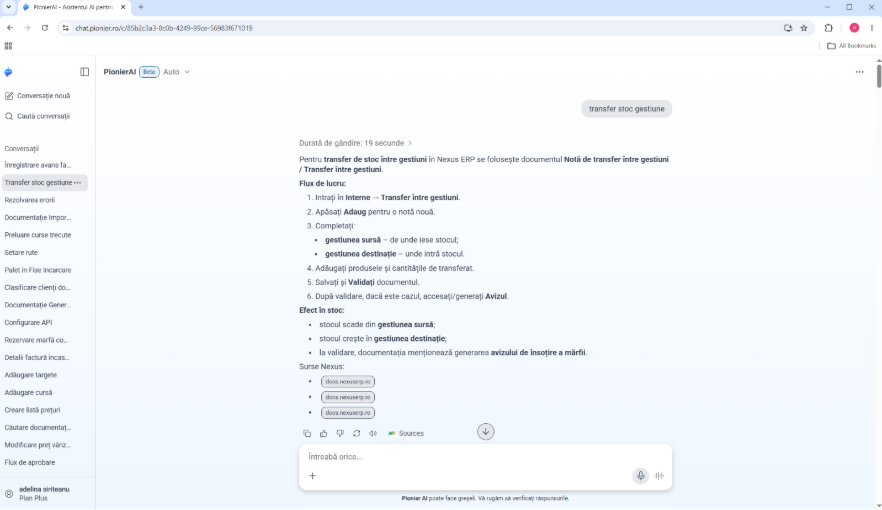
Solicitarea adresată: transfer stoc gestiune
Răspunsul generat de Pionier AI
Pentru transfer de stoc între gestiuni în Nexus ERP se folosește documentul Notă de transfer între gestiuni / Transfer între gestiuni.
Flux de lucru:
Intrați în Interne → Transfer între gestiuni.
Apăsați Adaug pentru o notă nouă.
Completați:
gestiunea sursă – de unde iese stocul;
gestiunea destinație – unde intră stocul.
Adăugați produsele și cantitățile de transferat.
Salvați și validați documentul.
După validare, dacă este cazul, accesați/generați avizul.
Efect în stoc:
stocul scade din gestiunea sursă;
stocul crește în gestiunea destinație;
la validare, documentația menționează generarea avizului de însoțire a mărfii.
Analiza rezultatului
Răspunsul furnizat este corect și permite identificarea rapidă a funcționalității necesare. Totuși, informațiile sunt prezentate într-o formă sintetică și oferă un nivel redus de detaliu privind verificările și condițiile care trebuie îndeplinite pentru efectuarea operațiunii.
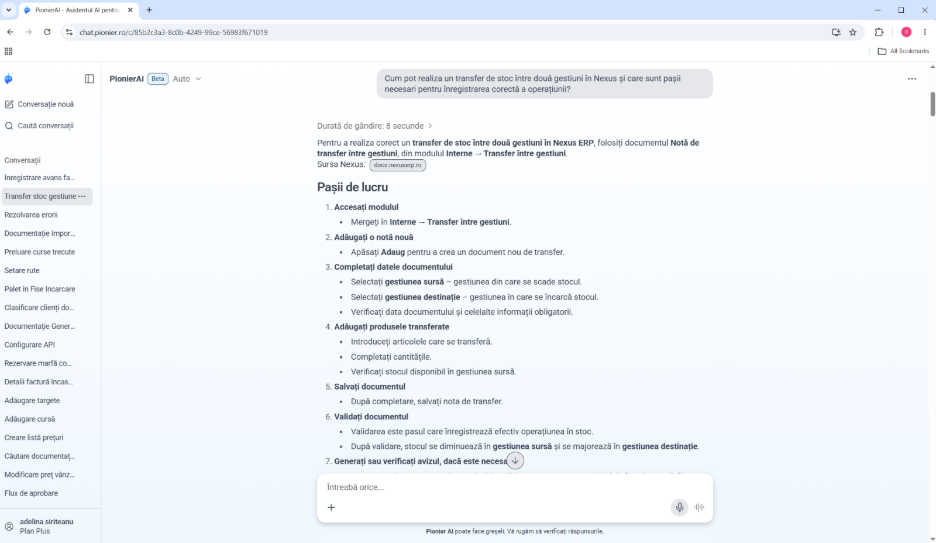
Varianta 2 – Interogare formulată în limbaj natural
Solicitarea adresată
Cum pot realiza un transfer de stoc între două gestiuni în Nexus și care sunt pașii necesari pentru înregistrarea corectă a operațiunii?
Răspunsul generat de Pionier AI
Pentru a realiza corect un transfer de stoc între două gestiuni în Nexus ERP, folosiți documentul Notă de transfer între gestiuni, din modulul Interne → Transfer între gestiuni.
Pașii de lucru
1. Accesați modulul
- Mergeți în Interne → Transfer între gestiuni.
2. Adăugați o notă nouă
- Apăsați Adaug pentru a crea un document nou de transfer.
3. Completați datele documentului
Selectați gestiunea sursă.
Selectați gestiunea destinație.
Verificați data documentului și celelalte informații obligatorii.
4. Adăugați produsele transferate
Introduceți articolele care se transferă.
Completați cantitățile.
Verificați stocul disponibil în gestiunea sursă.
5. Salvați documentul
- După completare, salvați nota de transfer.
6. Validați documentul
Validarea reprezintă pasul care înregistrează efectiv operațiunea în stoc.
După validare, stocul se diminuează în gestiunea sursă și se majorează în gestiunea destinație.
7. Generați sau verificați avizul, dacă este necesar
- Documentația Nexus menționează că la validare se poate genera avizul de însoțire a mărfii pentru transfer.
Verificări importante înainte de validare
Gestiunea sursă trebuie să aibă stoc disponibil.
Gestiunea destinație trebuie să fie corect aleasă.
Cantitățile introduse trebuie să corespundă transferului fizic.
În cazul utilizării loturilor, seriilor sau a gestiunilor valorice, trebuie verificate informațiile specifice produselor.
Efectul operațiunii
Etapă | Efect
În gestiunea sursă | Scade cantitatea transferată
În gestiunea destinație | Crește cantitatea transferată
La validare | Operațiunea devine efectivă în stoc
După validare | Se poate utiliza sau verifica avizul aferent
Analiza rezultatului
Comparativ cu răspunsul obținut prin utilizarea cuvintelor-cheie, această formulare a întrebării a generat un răspuns semnificativ mai detaliat și mai bine structurat. Sistemul a oferit nu doar pașii operaționali, ci și verificările necesare înainte de validare, efectele operațiunii asupra stocurilor și recomandări suplimentare privind utilizarea funcționalității.